Applies to: Operator
Solution overview
Bulk customer notifications support SMS as a channel, alongside email. From a customer list, you can select recipients and send them a notification by email, SMS, or both, without needing a predefined template for the SMS content.
SMS is only available if the TextMessaging feature is enabled in your environment. If you don't see the SMS option and want to start sending bulk SMS notifications, contact COS Support to have it set up.
Step by step instructions
- Navigate to the customer list and select the customers you want to send a notification to.
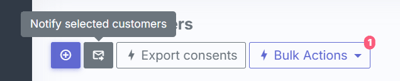
- Press Notify selected customers. This takes you to the Compose page.
- Choose your channel. Two checkboxes are available: "Send email" (ticked by default) and "Send SMS". Tick "Send SMS" to include text messages. At least one channel must be ticked, you can't send with neither selected.
- If your customer list includes multiple languages, content is set per language tab. For each language, enter the SMS text in the SMS box. If you're also sending email, enter a subject and body for that language too. This means you can send email to customers in one language and SMS to customers in another within the same job.
Note: SMS content is capped at 1600 characters.
Note: If you send SMS only, no email is queued, even though the email template pre fills a subject field.
- Check the "Recipients by channel" line to see how many recipients are SMS eligible. A customer is SMS eligible if they have text messaging enabled and a mobile number on file. Customers who aren't SMS eligible won't receive the text message even if SMS is ticked.
- Once your content and recipients look correct, send the notification. If you also want to schedule the send or send it out in batches rather than immediately, see How to schedule bulk notifications.