Scheduling is only available if the Bulk Notification Scheduling feature is enabled in your environment. Contact COS Support if you'd like it set up.
When you're creating a bulk notification to send to customers, whether by email, SMS, or both, you don't have to send it right away. Instead of sending immediately, you can schedule it for a later date and time, and choose to send it out gradually in batches rather than all at once.
This is set up on the same Compose page where you create the bulk notification, after you've selected your recipients and channel. The scheduling options appear alongside the rest of the send settings.
Scheduling a send
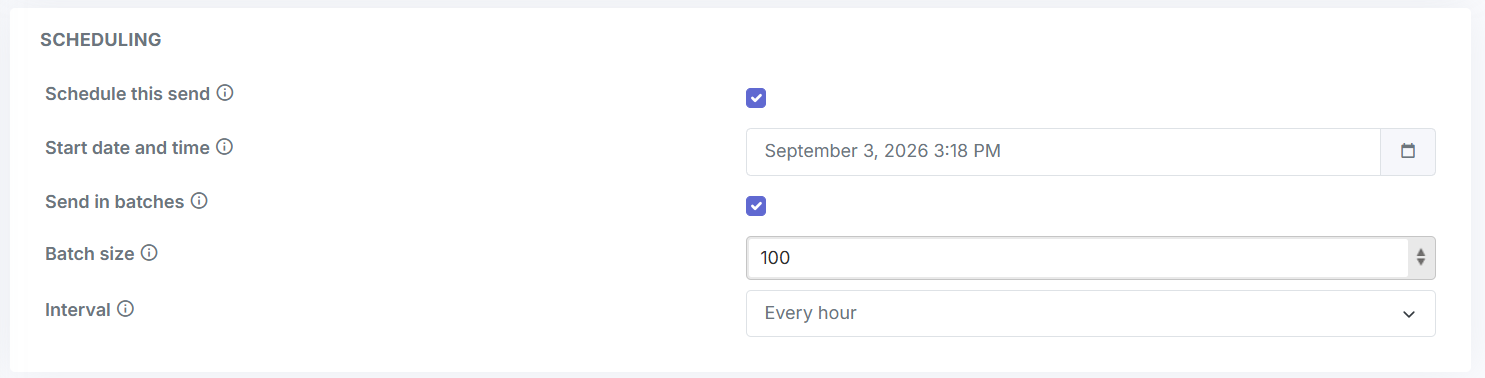
Tick "Schedule this send" to set a start date and time, and to enable batch sending, batch size, and interval. When scheduling is on, a start date is required and must be in the future, down to the time of day, not just the date. You can schedule for later today as long as the time is still ahead.
Sending in batches
With batch sending on, you set a batch size and an interval (5, 10, 15, 30, or 60 minutes; hourly is the default). A batch counts customers, not messages, so 250 recipients across both channels go out as 3 batches of 100, not 6. If a batch spans a language boundary, both parts still send together at the same time and the batch still totals exactly the batch size.
The batch summary below the fields updates live to show recipient counts. If your batch size is larger than the total number of recipients, it reads "sent in one batch".
Nothing sends before the scheduled start time. Once the job completes, you get a notification linking to the job.
Tracking a scheduled job
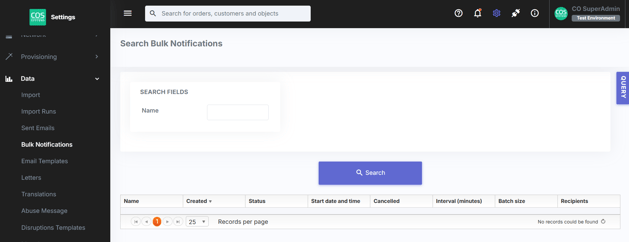
All bulk notifications are listed under Settings menu, Data, Bulk notifications. Here you can see the status and progress of every job, whether it's scheduled, in progress, completed, or cancelled.
Cancelling a scheduled job
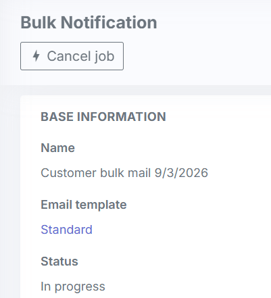
Jobs with the status Scheduled or In progress can be stopped. A Cancel button appears for these jobs, asks for confirmation, and reports how many batches and pending messages were stopped. Once cancelled, the button disappears.
If you cancel before any batch has run, nothing sends. If you cancel mid run, no further batches go out, but anything already sent stays sent. A cancelled job doesn't send a completion notification, and cancelling an already cancelled job has no effect.