Introduction
Canceling an order in COS Business Engine (BE) is a simple process that can be performed through the Admin interface. Whether an order was placed incorrectly, is no longer needed, or the customer has requested cancellation, this guide will show you how to properly cancel an active order.
Solution Overview
Order cancellation is done through the COS Business Engine Admin portal, using the Cancel order action. You can choose to cancel the order immediately or set a future cancellation date, and you control whether the customer is notified by email. Follow the instructions below to cancel an order effectively.
In the order details page, find the "Actions" button at the top with a lightning bolt icon, and select Cancel Order.

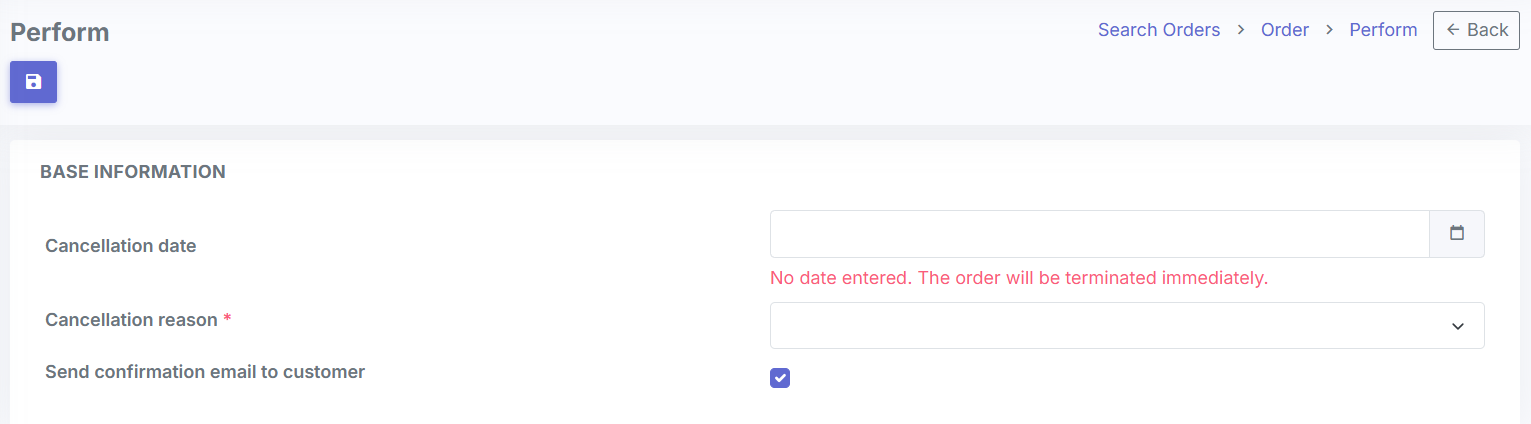
On the Cancel Order form, you have two options depending on how you want the cancellation to take effect:
- Set a cancellation date: Enter a future date in the cancellation date field. The order will remain active until that date, then be terminated automatically.
- Cancel immediately: Leave the cancellation date field empty. A warning will appear on the form letting you know the order will be terminated immediately if you continue. When you save, you'll be asked to confirm before the cancellation goes through.
Cancellation reason: If your environment uses cancellation reasons, select one from the list here.
Before saving, check the "Send confirmation email to customer" checkbox. This is checked by default, so the customer will receive a notification email about the cancellation unless you uncheck it.
Once saved, the order is canceled. If no cancellation date was entered, this happens immediately; otherwise the order will be terminated automatically on the date you set. Orders canceled without a date are tracked separately in system reporting, so you can distinguish immediate cancellations from those with no date provided.
Recurring Payment Behavior After Termination
This section applies only to customers using Business Engine end-user billing.
When an order is terminated, any outstanding charge is not automatically removed or cancelled. The charge remains as an open invoice, and automated payment attempts will continue on the normal schedule until the balance is paid.
This behavior is intentional — it allows Business Engine to keep attempting collection on outstanding balances even after a service has ended, while still giving you the flexibility to stop billing on a per-customer basis if needed.
If you want to stop billing a customer after termination, you have two options:
- Disable automatic billing for that customer, which stops future payment attempts.
- Apply a negative transaction to cancel out the outstanding balance.
To summarize: terminating an order does not affect open invoices or stop automated payment attempts. The payment cycle continues until the balance is settled, automatic billing is disabled, or the balance is zeroed out.