Overview
Applies to: Operators in Open Access Networks
Promotions in COS Business Engine are used to temporarily adjust wholesale relationship fees so Service Providers can offer discounted pricing to end customers for a defined period. The promotion concept has two parts:
-
Operator Promotion: Created by the Network Operator and aimed at Service Providers (wholesale-side).
-
Service Provider Promotion: Created by Service Providers and aimed at end customers (retail-side), based on the Operator Promotion.
Operator promotions can be customized by Service Provider and by area, allowing targeted promotions where needed.
Operator Promotions
Operator Promotion is a feature that needs to be enabled by COS.
Contact support if you want to enable it.
What an Operator Promotion does
An Operator Promotion temporarily reduces relationship fees, enabling Service Providers to create discounted customer offerings during the promotion period.
Create a new Operator Promotion
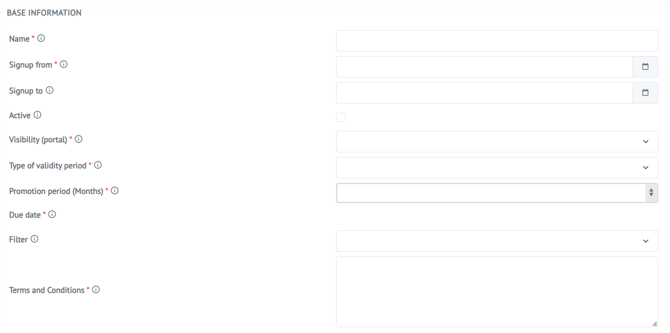
When creating an Operator Promotion, you typically configure:
-
Name: Internal promotion name (shown only in the administration portal).
-
Signup from: First date when end customers can place new orders linked to the promotion.
-
Signup to: Last date when end customers can place new orders linked to the promotion (optional if open-ended).
-
Active: Controls whether the promotion is active/inactive. If inactive, it will not be shown in the customer portal and will not apply discounts going forward; existing orders are not affected.
-
Visibility (Portal): Visible to all, or Only visible for objects with promotion access (i.e., objects that meet the promotion conditions). If set to “visible to all,” non-eligible users can see the service but cannot order it.
-
Type of validity period: Controls how long the discount applies to new orders (e.g., until a specific end date or for a number of months).
-
Filter: Used to limit which objects/customers have access to the promotion.
-
Terms and Conditions: Free-text field describing conditions for Service Providers. This is visible to Service Providers only (not to end customers).
Allowed Service Providers and Service Types
You can select:
-
Which Service Providers can use the promotion.
-
Which Service Types can be connected to the promotion and receive a fee reduction.
Fee reduction logic
Fee reductions are used to lower the relationship fee. Instead of a fixed price change, the promotion uses a percentage reduction.
Example: If you apply a 50% reduction to a monthly cost, the fee is halved during the active promotion period.
Filters for Promotion Targeting (optional)
Filters are commonly used to control exactly which objects/customers should have access to a promotion.
A filter includes One or more values/conditions that must be met by an object/customer for access
You can add multiple filter values, and filters can be used for scenarios such as identifying “passive ports.”
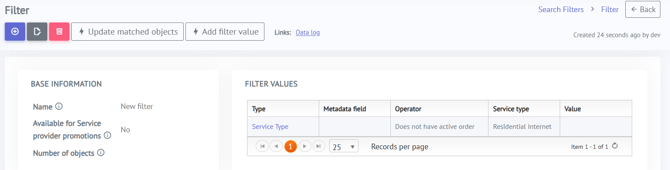
Filter values: type, operator, value
Each filter condition consists of:
-
Type: What kind of data is evaluated
-
Operator: Whether it must match (Equal) or must not match (Not equal)
-
Value: One or more values for the selected type
If multiple values exist for a type, matching any one value is enough. For metadata-type conditions, values must be added individually (not comma-separated).
Notifying Service Providers and Address List
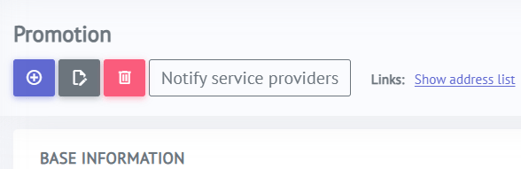
From an Operator Promotion, you can click Notify Service Providers to inform them that the promotion is available.
-
The email content is controlled by the email template: “SP: New Operator Promotion”
-
It is sent to the email address configured as the Service Provider’s internal email
The link Show address list will show Objects that have access to the promotion.
Service Provider Promotions (Customer-Facing)
Service Providers can view Operator Promotions on relevant services and then create their own customer-facing promotion based on it. The Operator Promotion terms/conditions are carried over as guidance.
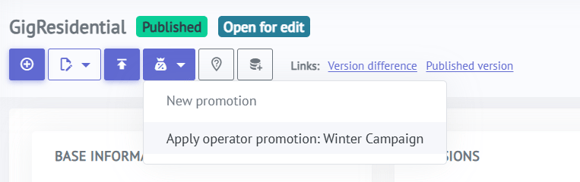
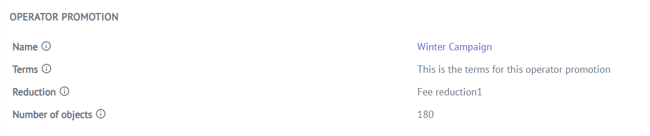
Here you can read more about how to set up Service Provider Promotions.
Reporting: Orders per Promotion
On the Operator Promotion, you can see:
-
Linked customer/service provider promotions
-
The number of orders placed connected to the promotion
When searching for orders, it is possible to filter orders that have a promotion applied.