Applies to:
Operators
Solution Overview
A Network Contract is the core link between an order and the network.
It describes:
- The Network Service being activated
- The Network Element and Port the customer is on
- Whether the system provisions the service automatically or manually
- Status of provisioning attempts
- Any provisioning errors returned
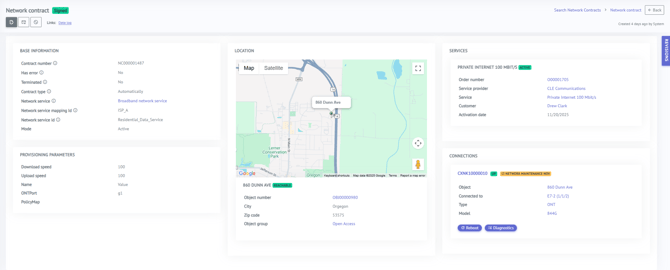
Network Contracts allow you to:
- See the network path BE is trying to provision
- Identify provisioning errors immediately
- Confirm that the correct port/ONT is being used
- Understand how a move, cancel, or update impacts the network
- Resend provisioning when necessary
What to look for in a Network Contract:
- Contract Number – must be a unique ID
- Terminated (Yes/No) – active or ended
- Has Error (Yes/No) – provisioning succeeded or failed
- Contract Type – Automatic or Manual Provisioning
- Network Service – e.g., Internet, VoIP, IPTV
- Network Element – OLT or switch
- Interface – the physical port or virtual interface
- Operation – Add/Remove IP (for manual provisioning only)
- Sign – confirms manual operations (for manual provisioning only)
Step by Step Instructions
- Go to Business Engine Admin.
Go to Operations and select Orders. - Search for orders that have status Awaiting Provisioning.
- Click on any order that has status Awaiting Provisioning to access more details.
- In the Order, check that the from date is not in the future (meaning that the order should not be activated until a later date). The from date is the date when the order was placed if not set to a future date.
-
Click on the Provisioning fly-in on the right hand side. In the fly-in you will see that the Network Contract has an error. Click on the Network Contract to enter the Network Contract of the order.
- Once you are in the Network Contract page, look for the section Provisioning Parameters. The field errorcode will display an error message.
For example: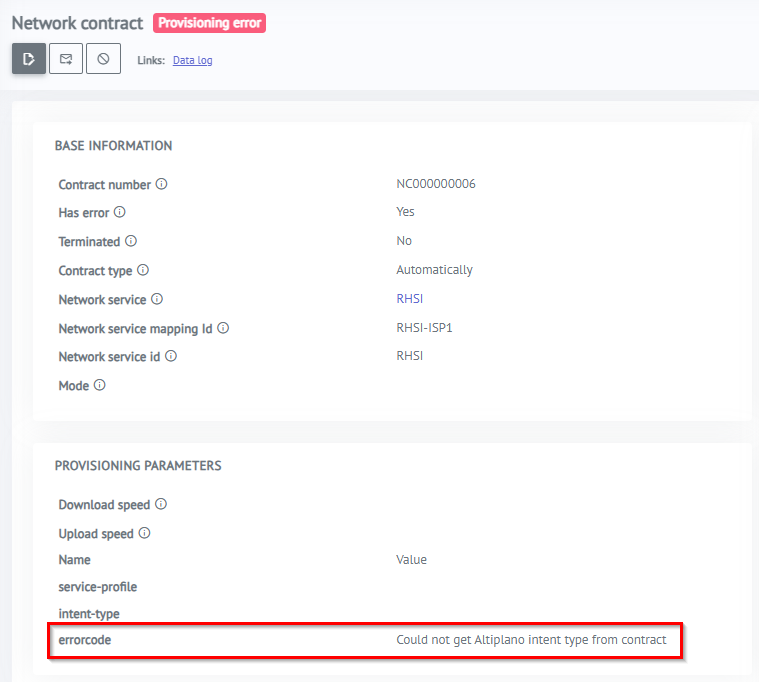
- Continue by clicking on the ONT serial number under the section Connections in the Network Contract page in order to access the Network Element.
- Once you have navigated to the Network Element page, you will find the Logs and Diagnostics fly-ins on the right-hand side. These panels provide valuable information that can assist in troubleshooting.
Review the ErrorDetail field within the Diagnostics fly-in to identify any error messages related to the fiber name.
For example: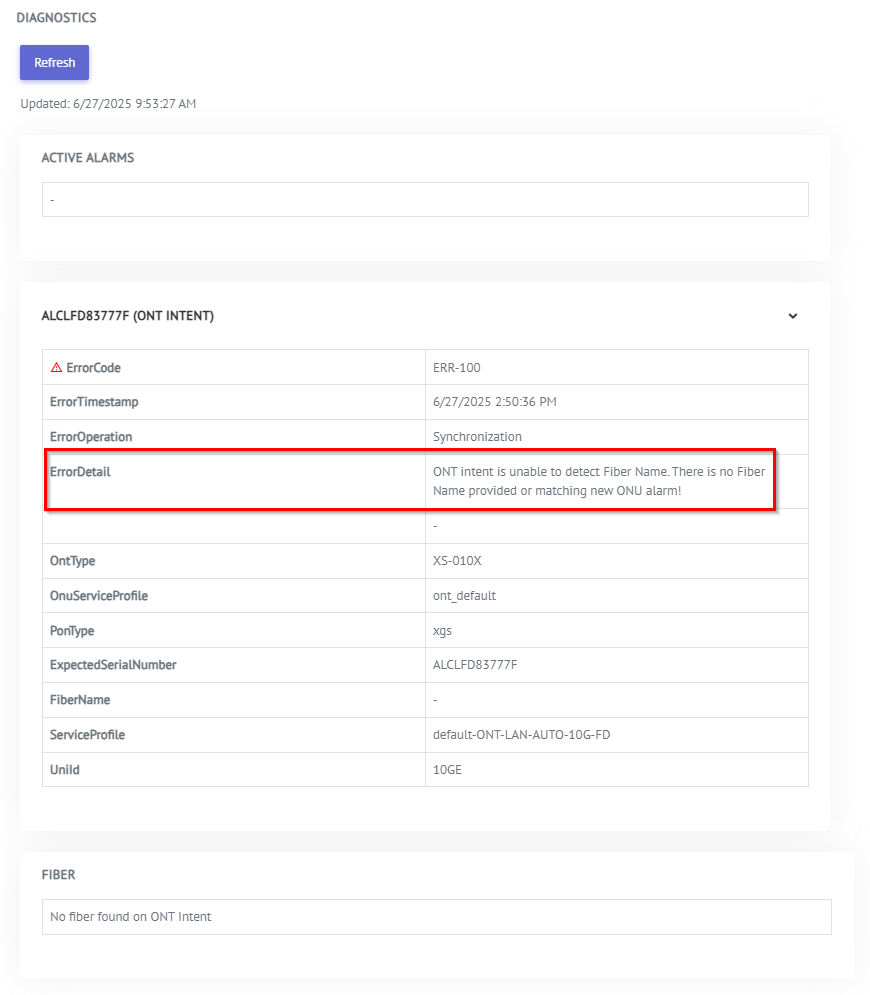
- To resend to Provisioning press the button Resend Provisioning from the Network Element page in order to activate the order.
Note! If the order does not activate after pressing the button Resend Provisioning there might be an issue with the fiber. It is then best to contact your provider for best assistance.