
Applies to: Operators using the Business Engine Deployment Portal
📌 Note: This article applies to Work Orders carried out in the Business Engine Deployment Portal. If your organization uses FSM (Field Service Management), Task Types work differently — please refer to the FSM documentation instead.
Overview
When building a Work Order Template, each Task must be assigned a Task Type. The Task Type controls what the technician is prompted to do in the Deployment Portal, and in some cases directly affects the state of the Object or its connected equipment.
Available Task Types
Activate Object Changes the Object's status from In Deployment to Deliverable, making it ready for service activation. This Task Type should always be placed last in a deployment workflow — unless a Speed Test Task is included, in which case Activate Object should be placed before the Speed Test.
Assign ONT Connects an ONT to the Object by entering the serial number — either manually or by scanning a QR code. If an ONT is already connected, it will automatically be replaced when a new one is assigned.
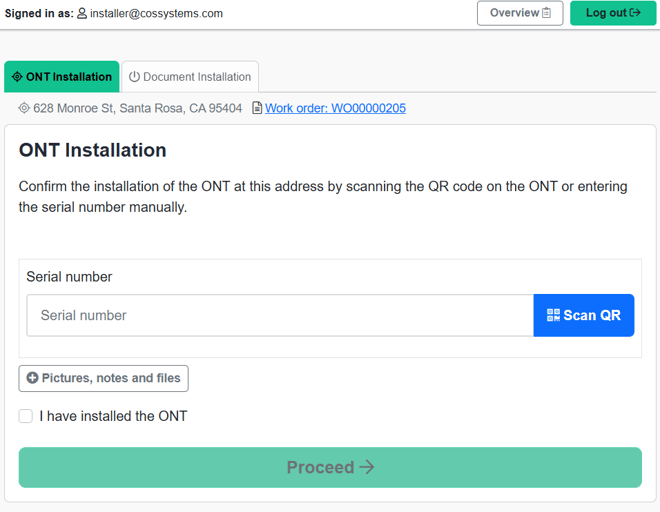
Confirm ONT Confirms that the correct pre-provisioned ONT has been installed at the address by entering the serial number. Used when the ONT is already assigned in the system and the technician is verifying the physical installation.
Drop Installation Sets the Drop Installed field on the Object to Yes, indicating that the physical drop cable has been installed.
Generic A standard Task that does not affect the Object in any way. Useful for instructions, checklists, or documentation steps that do not require a system action.
Install Other Equipment Connects equipment other than ONTs to the Object by entering the serial number — either manually or by scanning a QR code.
Speed Test Runs a speed test when the Task is performed and saves the result on the Object.
⚠️ Note: Speed Test requires an active Order. This Task should be placed after both the Object and Order have been activated in the workflow.