
Prerequisites
All Objects must already exist in Business Engine.
Step 1 - Import ONTs and Their Associated Objects
-
Create a new Import and download the ONT Import Template
-
Prepare the Template
-
Enter the ONT serial number.
-
Optionally, specify the Object number where the ONT is installed.
-
Optionally, add the Technical Area if known.
-
If not provided, it will be automatically assigned later when the OLT-ONT connection is imported (the ONT inherits the Technical Area from the OLT).
-
-
-
Upload the File
-
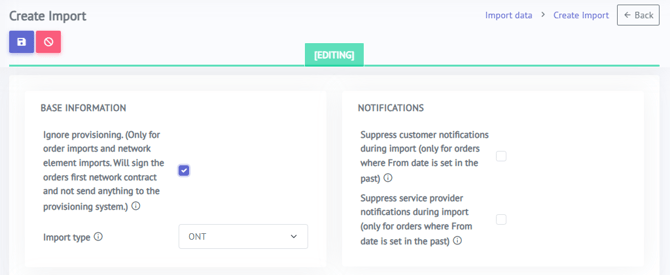
When uploading, check the box under Base Information to prevent events from being sent to the provisioning system (this is critical when migrating data).
-
Click Save.
-
-
The file will automatically be Validated - Press Start Import when validation shows no errors to import the ONTs.
Learn more: See our full guide How to import ONTs for detailed instructions.
Step 2 – Associate OLT with ONT
This step ensures that each ONT is correctly linked to its OLT, which also sets the correct uplink and Technical Area (if not already added in Step 1).
You can do this in two ways:
Option 1 – Import via Template
-
Use the ONT Ports import template to specify the OLT and port each ONT is connected to.
-
Ensure the ONT already exists in the system before performing this import.
-
-
Check the box under Base Information before starting the import to suppress event generation.
-
Click Start Import.
Option 2 – Update via API
Alternatively, you can use the API to define the OLT for each ONT programmatically.