
Overview
When you publish a new version of a service, existing orders stay on the version they were placed on. With the upgrade function you can move those orders onto a newer published version, and notify the customers at the same time. If price updates are turned on for your installation, you can also update the orders' prices.
The upgrade only changes which service version the orders use, and optionally their price. It does not trigger any provisioning or changes in the network.
Before you start
- Permissions: You need permission to edit the service, the same permission used to publish a new version. Users without it do not see the upgrade buttons. Service provider users only see and upgrade orders within their own service provider.
- A published target version: Orders can only be moved to a version that is published.
- Price updates: Updating prices is a function that can be turned on or off for your installation. If you want to use it, please contact COS support.
- Customer emails: The email to customers uses a new mail template that is deactivated by default. Activate it under Mail templates and review the wording before your first upgrade.
Which orders are included
All orders on a version are included, except inactive and discarded orders. This means active, parked and awaiting activation orders are upgraded, as well as orders that have not been activated yet. The order count shown in the version list is the same set of orders that will be upgraded.
An order is skipped if its object group is not available on the new version. Skipped orders are listed in the result and are never moved to a different object group. Addons on the orders are not updated.
How to upgrade orders
- Open the service in Admin and go to its version list. Each version shows how many orders it has.
- Choose how to upgrade:
- Update to latest on an older version moves that version's orders to the latest published version. The button is shown when the version has orders and a newer published version exists.
- Update all orders to this version on the latest published version moves the orders from all older versions of the service in one run.
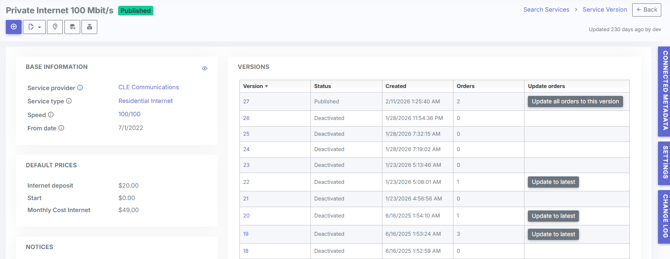
- Check the number of affected orders in the confirmation dialog.
-
If price updates are turned on, you can select the price option and choose the date the new prices should apply from. Without it, the orders keep their current prices.
- If you want to notify customers, select the email option. It is unchecked by default.
- Confirm. The upgrade runs in the background, and the result shows how many orders succeeded, were ignored or failed.
Updating prices
With the price option selected, the new version's published prices apply to the upgraded orders from the date you choose. Periods that have already been invoiced keep their original price. The option is only shown when price updates are turned on for your installation. To turn it on, please contact COS support.
Parked orders that have been active before are an exception. They are moved to the new version, but their price is not updated, and they are listed as ignored in the result. The rest of the run is not affected. Review these orders if their price should change when they resume.
Notifying customers by email
With the email option selected, customers receive an email saying that the terms for their service have been updated. One email is sent per upgraded order, so a customer with three upgraded orders receives three emails. Orders that were skipped do not get an email.
The emails are sent through the regular mail queue, so large runs are sent gradually. The template is editable, so you can adapt the wording under Mail templates. Since the same email is also sent for orders whose price was not updated, keep the wording general rather than mentioning a specific price change.
Once sent, emails cannot be recalled, so check the number of affected orders before you confirm.
What happens after the upgrade
Each upgraded order gets an entry in its order history showing the new service version and which user made the change. If you updated prices, the order also gets a new price from the date you chose.
No provisioning, deployment or workflow steps are started, so the end customer's connection is not affected.
Good to know
- Orders cannot be moved to an unpublished version or to a version of another service.
- There is no limit on how many orders one run can include. The count in the confirmation dialog shows exactly how many orders will be changed.
- The upgrade cannot be undone in one step, so we recommend trying it on a version with a few orders first.