
Notification Triggers
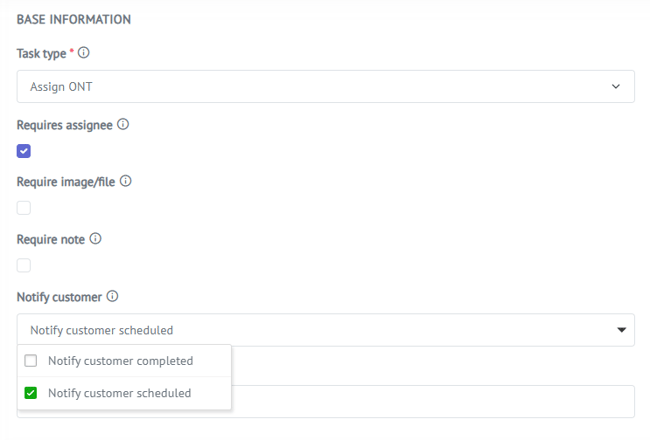
For each Work Order task, you can choose when the customer should be notified:
-
Scheduled
-
Completed
-
Both Scheduled and Completed
These settings control:
-
When information is shown in the customer portal
-
When email notifications are sent to the customer
Customer-Facing Text Fields
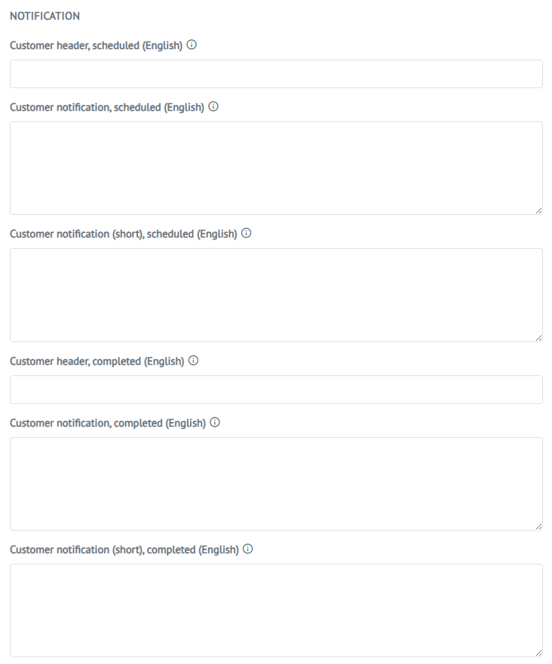
The text displayed in the customer portal and sent by email is defined on the task, per trigger:
Scheduled
-
Customer header, scheduled
-
Customer notification, scheduled
-
Customer notification (short), scheduled
Completed
-
Customer header, completed
-
Customer notification, completed
-
Customer notification (short), completed
Result
When a task is scheduled and/or completed (depending on configuration), the customer will:
-
See the relevant information in the customer portal
-
Receive an email notification with the same content
This provides clear, automated, and consistent communication throughout the work order lifecycle.
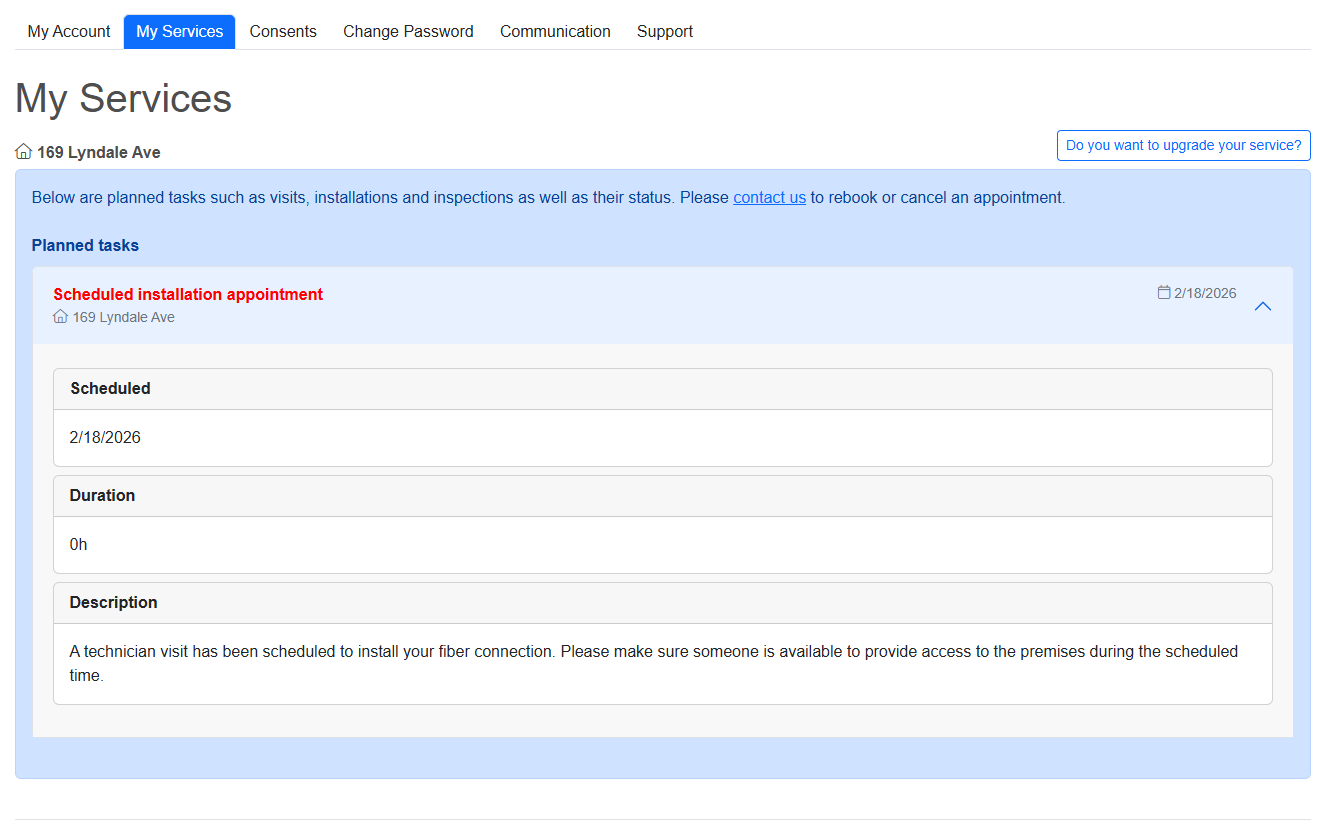 Scheduled Notification shwon in Customer Portal