
How it works
An invoice uses the invoice template linked to its payment processor. The payment processor comes from the service the order was placed in, not from the customer’s address. A customer with orders under two payment processors gets separate invoices, each with its own template.
The template is used for both paper invoices and PDF invoices sent by email or downloaded in the admin.
Before you start
To set this up, your user needs permission to edit both billing settings (payment processors) and email templates.
Configuration
1. Create an invoice template for each remittance address
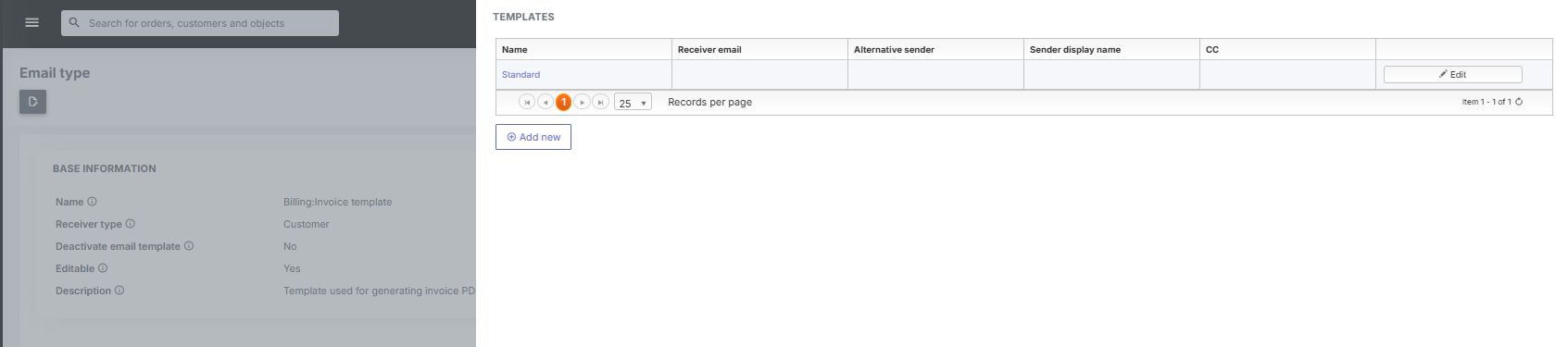
Go to Email templates and open Billing:Invoice template.
Open the Standard template and copy its template body. Click Create new template, give the template a clear name (for example “Invoice Dallas PO Box”) and paste the copied content into the template body. Change the “send payment to” address and click Save.
Repeat this for each remittance address. Payment processors that share an address can share a template, so you need one template per address, not one per payment processor.
2. Link the template to the payment processor
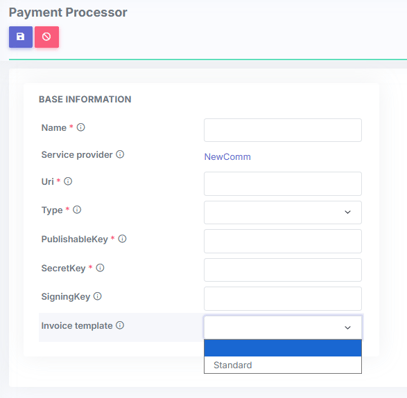
Go to Partners, open your partner and click the payment processor in the Payment processors section. Click Edit, choose the template in the Invoice template field and click Save.
The Invoice template field only lists invoice templates.
3. Check the setup
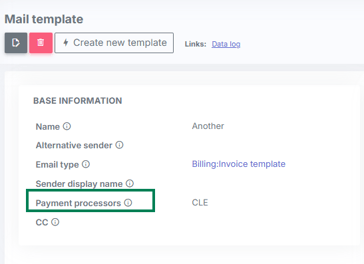
Open an invoice template. The Payment processors field lists every payment processor that uses it. To test it, download the PDF of an invoice from a customer under that payment processor and check the address.
Good to know
- The new template does not change when the Standard template changes. If you update the Standard layout later, update your other invoice templates too.
- To go back to the Standard template, edit the payment processor, clear the Invoice template field and save.
- The template is applied when the PDF is created, so downloading an older invoice again also shows the new template.
- Changes to the template text are logged. Changing which template a payment processor uses is not logged.