
This applies if several service providers use your platform
When several service providers share one platform, each of them can now send emails to its own customers in its own name. A provider adds its own mail server and sender address, and edits its own copy of the customer email templates. Changes a provider makes only affect that provider's customers.
How it works
- Each service provider can have its own mail server (SMTP) and sender address.
- Each service provider has its own copy of every customer-facing email template: invoices and payments, orders and services, and tickets.
- If a provider has not changed a template, its customers get the standard template.
Which provider sends which email
|
|
Sent by |
|---|---|
|
Order emails |
The provider of the order |
|
Invoice and payment emails |
The provider behind the invoice's payment processor |
|
Ticket emails |
The provider of the ticket's order |
|
Account and login emails |
Always the platform |
|
No provider can be found |
The platform, with the standard template |
Emails with a way to sign in, such as password recovery, passwordless login and registration, are always sent from the platform's own server and address.
Adding a mail server and sender address
- In the new admin, go to "Configuration", "Data" and select "Mail Settings".
- Add the mail server's host, port, user name and password, and the sender address and name.
- Save.
The mail server must support TLS with a valid certificate. The password can be replaced but never shown again. If you change the host, port or user name, you need to enter the password again.
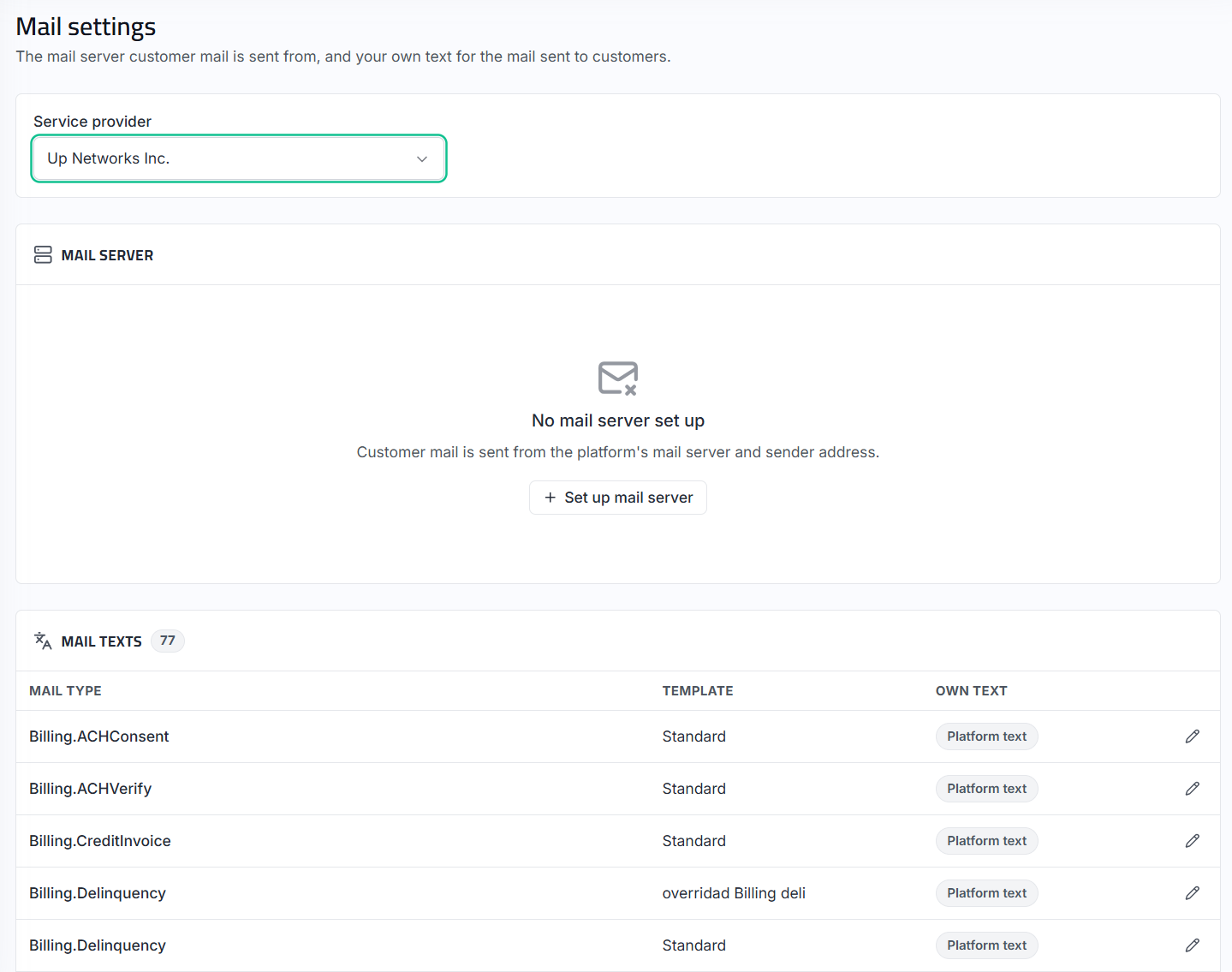
Editing your email templates
On the same page, open the template you want to change and edit the text. Your changes only apply to your own customers. The placeholder for the customer's personal identity number cannot be used in a provider's own text.
When the platform sends instead
If a provider has no mail server set up, or its server cannot be reached, the email is sent from the platform's address instead, and the failure is logged. Each email shows which server sent it, so support can see why a customer got an email from the platform's address.
Who can change the settings
The Mail Settings page is shown to users with the permission to view mail settings. Service provider admins manage their own provider's settings. Network owner admins can manage all providers.