
This article only applies if you bill end customers through Business Engine.
How the discount is decided
The discount depends on how the customer pays. The amounts below are examples.
|
Customer pays with |
Discount on the invoice |
|---|---|
|
Manual payment |
No discount |
|
Card autopay |
The card autopay discount, for example $5 |
|
Bank (ACH) autopay |
The bank autopay discount, for example $10 |
If the customer changes how they pay, the next invoice follows the new payment method.
Setting it up
Autopay discounts are off by default. To turn them on, please contact COS support and let us know:
- The card autopay discount: a fixed amount per invoice, for example $5.
- The bank autopay discount: a fixed amount per invoice, for example $10.
- A GL code for the discount rows, if you want them booked on their own account.
- Customer types that should have other amounts, or no discount at all. The discounts can be set differently per customer type, the same way as fees.
You can offer only one of the two discounts. Leave the other at zero.
What customers see in the marketplace
Customers see the discount before they choose how to pay:
- Service list and service page: The price is shown as a "From" price that includes the largest autopay discount available. A tooltip shows how the price is calculated, for example regular price $49.99, campaign price $25.00, autopay discount -$10.00, from $15.00.

- Promotions: The promotion tooltip is still shown next to the autopay tooltip, so customers see both.
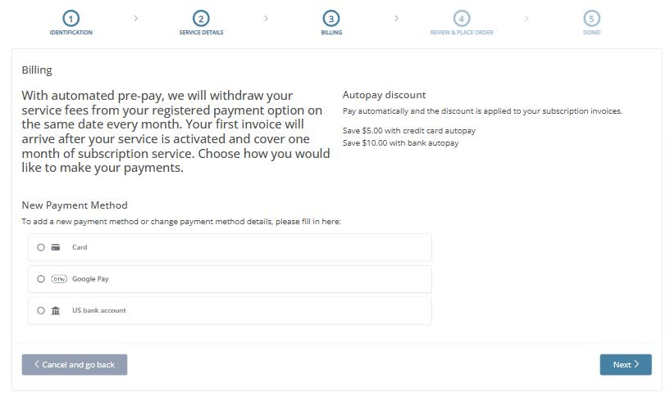
- Payment method step: Each option shows what it saves, for example "Save $5.00 with credit card autopay" and "Save $10.00 with bank autopay".
- Order summary: The monthly total shows the discount for the payment method the customer chose.
Only payment methods you offer are advertised. If you only allow card autopay, the bank discount is not shown, and the "From" price uses the card discount.
How it shows on invoices
For customers on autopay, each invoice gets a row called Autopay discount with a negative amount. The row is added the same way as fees, so it appears on regular invoices and on the first invoice when the customer orders.
The discount is never larger than the invoice itself. If the invoice total is lower than the discount, the discount is reduced to the invoice total, and invoices with nothing to pay get no discount.
Good to know
- Discounts and fees are separate: Autopay discounts work alongside any transaction fees you already have set up.
- Promotions still apply: The autopay discount is added on top of promotion prices.
- Manual payment customers: They pay the regular price and get no discount row.