
How automatic and manual import work together
Business Engine syncs with Vetro automatically on a schedule. Whether a sync also imports new addresses depends on whether automatic import is turned on for your installation:
-
Automatic import turned on: Every sync, scheduled or manual, imports the service locations marked for import in Vetro. Addresses that have already been imported are also updated in Business Engine if something has changed in Vetro.
-
Automatic import turned off: Syncs do not import addresses. Instead, you can run a one-time import with Force import. It only imports service locations that are marked for import in Vetro and do not already exist in Business Engine. Addresses that have already been imported are not updated.
To turn automatic import on or off, please contact COS support.
Manual import is useful when you want to decide yourself when new addresses are added to Business Engine.
Before you start
- Vetro integration: Your installation must be connected to Vetro. If it is not, please contact COS support.
- Locations marked for import: Only service locations with Cos Address Import set to Yes in Vetro are imported.
- Automatic import turned off: The Force import option is only shown when automatic import is turned off.
How to run a manual import
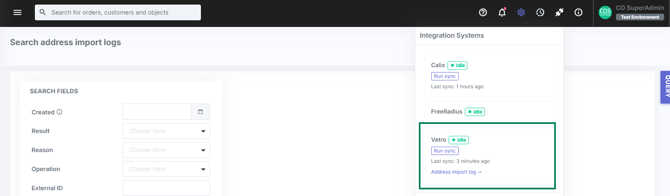
- In Admin, open the integration systems dropdown.
- Find the Vetro row and check Force import next to Run sync.
- Click Run sync. Business Engine runs a full sync with Vetro and imports the service locations marked for import.
The checkbox is unchecked again the next time you open the dropdown, so each forced import is a deliberate choice. Clicking Run sync without the box checked runs a normal sync without importing addresses.
Following up on the import
Every import is recorded in the address import log, which covers both scheduled and forced runs. Open it from the Address import log link on the Vetro card in the Integration Systems menu. Forced runs are shown as Forced import. The log shows every address that Business Engine tried to create, and any update that was skipped or failed. Successful updates of existing addresses are not logged.
Each row shows one of these results:
- Success: The address was created in Business Engine. The row links to the new object.
- Skipped: The address was not imported. The reason is shown on the row.
- Failed: Something went wrong during the import. Open the row to read the full error message.
Common reasons for a skipped address, and where to fix them:
- Missing coordinates, missing building type or invalid address format: Correct the service location in Vetro.
- No matching object group: Set the attribute COS Object Group on the service location in Vetro, and make sure the object group exists in Business Engine.
- Service location already imported: An object linked to this service location already exists in Business Engine, so no action is needed.
When the cause is fixed, run the import again.
NOTE! Business Engine does not check for duplicate addresses. If two service locations in Vetro have the same address, both are imported as separate objects. Make sure each address only exists once in Vetro before you import.
If a forced import fails, the error is shown in the integration systems dropdown. A failed forced import is not retried automatically, so check Force import and click Run sync again when you are ready.