Applies to:
Operators
Create a New Email Template
-
Go to Email templates
-
Click the email template you want to customize
-
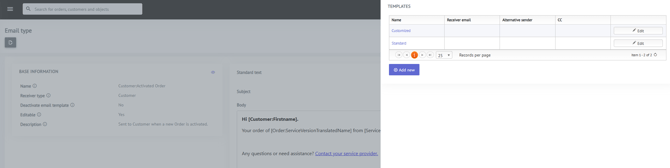
Open the Templates fly-in
-
Click Add new
-
Enter a name for your new email template and click Save
-
Click Edit and customize the email content as needed
Your new email template is now created.
Apply the Email Template to a Service Type, Partner, Group, or Marketplace
To use the customized email template:
For a Service Type:
- Go to the relevant Service Type
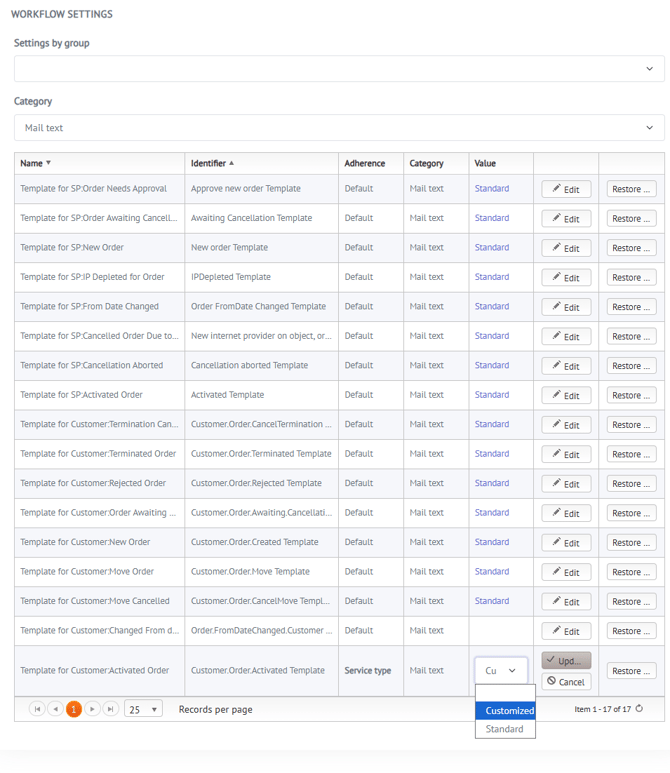
- Open Workflow settings (fly-in)
- Select the Category: Mail text
- Click Edit
- Select your newly created email template
- Click Save
For a Partner, Group, or Marketplace:
- Go to the relevant Partner, Group, or Marketplace
- Open Settings (fly-in)
- Find the relevant setting in the list
- Click Edit
- Select your newly created email template
- Click Save
Result
The newly created email template will now be used for the selected Service Type, Partner, Group, or Marketplace, overriding the default email template.
This makes it possible to:
- Customize customer communication per service type
- Use different email content for different partners
- Brand emails separately per group or marketplace
- Maintain consistent branding and messaging