
Before you start
- FSM integration: The page is only available when FSM is enabled for your installation. If it is not, please contact COS support.
- Permissions: Users with the CO Super Admin or CO Admin profile can view and change the configuration.
- Where to find it: In Admin, go to System → FSM Work Order Configuration.
Global default settings
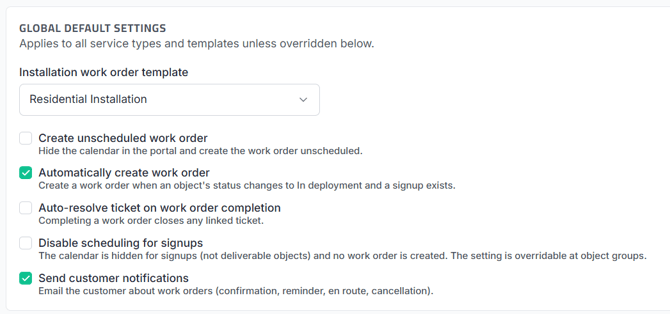
The global settings apply to every service type that does not have an override. They are the same settings as on the Settings page, so a change in one place is shown in the other.
|
Setting |
What it does |
|---|---|
|
Installation work order template |
The FSM template used for installation work orders. The list shows the templates available in FSM. Choose No template - No work order created if no work order should be created by default. |
|
Create unscheduled work order |
Hides the calendar in the portal and creates the work order without a scheduled time. |
|
Automatically create work order |
Creates a work order when an object's status changes to In deployment and a signup exists. |
|
Auto-resolve ticket on work order completion |
Closes any linked ticket when the work order is completed. |
|
Disable scheduling for signups |
Hides the calendar for signups on objects that are not yet deliverable, and no work order is created. This setting can also be overridden per object group. |
|
Send customer notifications |
Emails the customer about work orders: confirmation, reminder, en route and cancellation. |
Service type overrides
Use an override when a service type needs a different setup than the global defaults. An override only affects new orders for that service type.

- In Service type overrides, click Add override.
- Select the Service type.
- Leave Create installation work order checked if a work order should be created for this service type, or uncheck it to create no work order.
- In Installation work order template, choose the template for this service type, or leave it on Use global installation template.
- In Create unscheduled work order, choose Yes or No, or leave it on Use global setting.
- Click Save.
Any value left on the global setting follows the global default settings, also if the global settings change later.
The row shows the values for the service type. Values that follow the global setting are marked (default) in grey. Below the table you can see how many service types still use the global defaults.
To change an override, edit the row. To go back to the global defaults for a service type, delete the row.
Customer notifications per work order template
Notifications are set per work order template, not per service type. This means the setting follows every work order that uses the template, including work orders created from tickets.

- In Notification overrides, click Add override.
- Select the Work order template.
- Leave Send customer notifications checked to always send notifications for this template, or uncheck it to never send them. The override applies regardless of the global setting.
- Click Save.
The override applies to all work order emails to the customer: confirmation, reminder, en route and cancellation. Templates without an override follow the global Send customer notifications setting.
The change takes effect immediately, also for existing work orders with notifications that have not been sent yet.
Examples of common setups
|
What you want |
How to set it up |
|---|---|
|
One service type uses a different template |
Keep the global template, and add a service type override with the other template. |
|
Only some service types get a work order |
Set the global template to No template - No work order created, and add overrides with a template for the service types that need a work order. |
|
No work order for one service type |
Add an override for the service type with Create installation work order turned off. |
|
Customers book their own time, except for one service type |
Keep Create unscheduled work order off globally, and set it to Yes in an override for that service type. |
|
No customer emails for one type of visit |
Add a notification override for that template with notifications turned off. |
Good to know
- Manual work orders are not blocked: Operators can always create a work order by hand from the object page, with any template, even if work orders are turned off for the service type.
- The API follows the configuration: If installation work orders are turned off for a service type, creating one through the API returns an error.
- Skipped work orders are logged: When no work order is created because of the configuration, a note is added to the object history when the object enters deployment.
- When changes take effect: Service type overrides only affect new orders, and existing work orders are not changed. Notification overrides take effect immediately for all existing and future work orders with that template, for every notification that has not been sent yet.
- Templates removed in FSM: If a work order template is no longer available in FSM, every row that uses it is marked Not in FSM. This applies to both service type overrides and notification overrides. You can still edit or delete the rows.