Applies to
Operators using subscriber invoicing in Business Engine who are Avalara customers.
Introduction
Some of the services you provide and invoice through Business Engine are subject to tax. COS Systems has partnered with Avalara to provide accurate tax calculation for operators using subscriber invoicing. Avalara keeps track of the tax rates and rules that apply to the services you offer, and also supports the tax filing you are required to do.
When Avalara is activated, it replaces the built in Business Engine tax tool. To use the integration, you need to be an Avalara customer. For more information, visit avalara.com or watch the intro video How Avalara Works.
Solution Overview
Taxes are calculated based on the service location address. They are calculated and processed through Avalara when the invoice is created in Business Engine. Before the invoice is created, tax calculations are estimates only.
To set up the integration, you identify the tax codes that apply to the products you offer and associate them with the relevant price type for each service.
Step by step instructions
Step 1 - Send your Avalara details to COS Systems
To set up the integration, COS Systems needs the following information:
- Avalara username and password
- Avalara client ID
- Avalara profile ID (if applicable)
Please send this information to COS Systems support in a secure way.
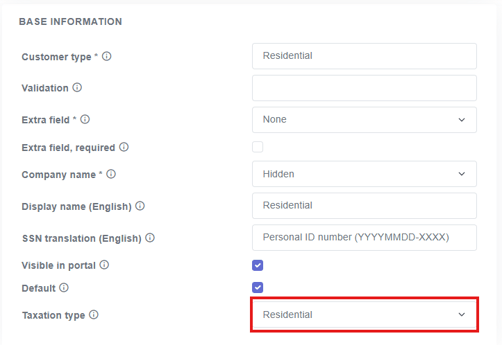
Step 2 - Apply Avalara Taxation types to Customer types
- In the Settings menu, go to Customers and then Customer types.
- Click the customer type you want to update, then click the edit icon.
- Select the corresponding taxation type and click Save.
- Repeat for all customer types that are subject to tax.
Step 3 - Select Tax codes
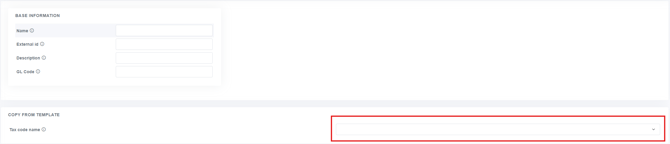
- In the Settings menu, go to Billing and then Tax codes.
- Click the + sign at the top of the page to add a tax code.
- Select the correct tax code and save.
- Repeat until all applicable tax codes are listed.
Step 4 - Associate Tax codes with Price types
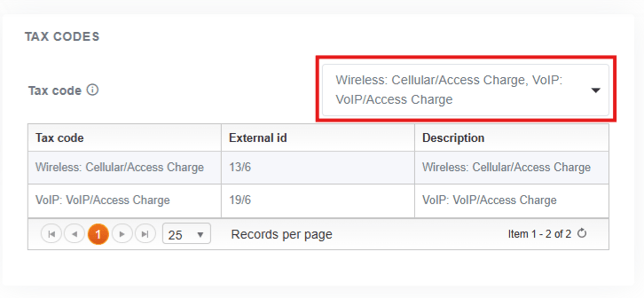
- In the Settings menu, go to Services and then Price types.
- Click the price type for the service that is subject to tax, for example Monthly fee VoIP.
- In the Tax codes section, add the tax codes that apply to the price type and click OK.
- Repeat until all taxable price types have the correct tax codes.
Step 5 - Associate Tax codes with Invoice adjustments
-
Invoice adjustments can be created as templates. If an invoice adjustment is taxable, it needs its own price type so that a tax code can be associated with it. Follow the same process as in Step 4.
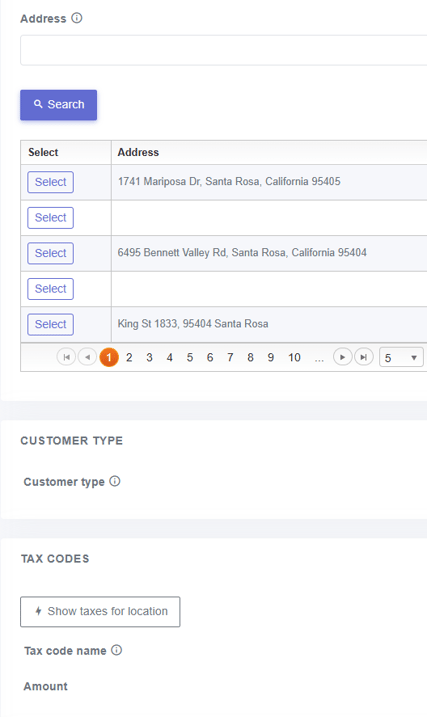
Step 6 - Test Tax locations
- In the Settings menu, go to Billing and then Test tax locations.
- Select an address, a customer type and a tax code, and enter an amount.
- Click Show taxes for location and check that the tax calculation is correct.
Reporting and statistics
Invoice rows and tax transactions for reporting and statistics can be accessed in several ways, depending on your needs:
- Instantly through the COS BE Billing API.
- In the COS reporting database, updated daily.
- As tax transactions in Avalara, where the reference is the Business Engine invoice number, for example C00001212-0005.
The tax transaction is created when the invoice is processed.