When does this happen?
This commonly happens after an Installation scheduling failure: if the selected timeslot is already full in COS FSM, the scheduling cannot be completed and a message is shown directly after order completion. In these cases, the order will not be associated with a Work Order in FSM.
Steps
- Go to Object list (Search object list).
-
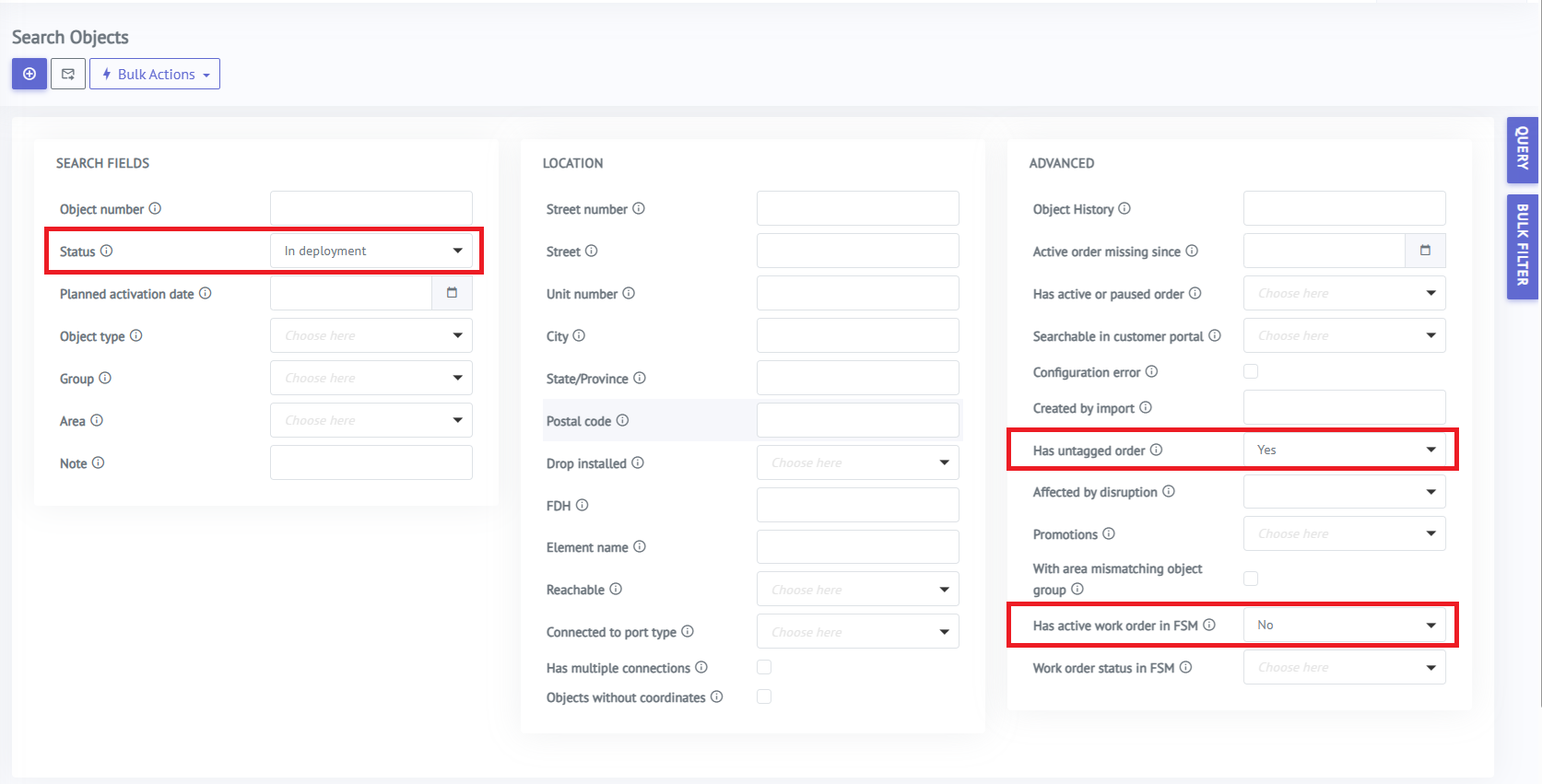
Apply filters
Set these filters:-
Status: In deployment
-
Has untagged order: Yes
-
Has active work order in FSM: No
-
-
Review the results
-
The list shows objects/orders that are in deployment, have an internet order, and do not have a Work Order in FSM.
-
Open a result to verify the order details and proceed with next actions (e.g., create the FSM Work Order and schedule a new available timeslot).
-